10 AI Prompts for Meeting Summaries and Action Items
Ten copy-paste AI prompts that turn messy meeting notes into clean summaries and assigned action items — so you leave every meeting knowing who owns what.
The meeting just ended. Everyone nodded, said "great, let's do it," and closed their laptops. Twenty minutes later you're staring at a blank doc trying to remember who actually agreed to do what — and whether that deadline was Thursday or next Thursday.
AI can fix most of this in about ten seconds — paste your notes or transcript, run a prompt, get a clean summary with action items. But there's a catch nobody mentions: a lazy prompt gives you a lazy summary, and a too-trusting prompt will happily invent an owner for a task nobody volunteered for. This guide gives you 10 prompts that get it right, plus the habits that keep the AI honest.
Why "Summarize This Meeting" Gives You a Useless Blob
Type "summarize this meeting" into ChatGPT and you'll get something that's technically a summary and practically useless: a wall of bullet points that says "the team discussed the timeline" without ever telling you what they decided about it.
The fix is to stop asking for a summary and start asking for a specific document with a specific shape. Every good meeting prompt does three things:
Assigns a role. "You are an executive assistant" or "You are a project manager" tells the AI what counts as important and what's just chatter.
- Defines the exact output. Don't say "make it structured." Spell out the sections and columns you want: Decisions, Action Items (with owner and due date), Open Questions.
Sets rules it can't wriggle out of. The big one: never invent an owner or a deadline that wasn't actually stated.
That last rule is the difference between a recap you can send and one that quietly makes things up. We'll bake it into every prompt below. For the deeper version of this idea, see the anatomy of a perfect prompt and role prompting.
Before You Paste Anything: A 30-Second Privacy Check
Meeting notes are some of the most sensitive text you'll ever hand to an AI — salaries, client names, legal discussions, half-formed strategy. Before you paste a transcript, take 30 seconds to think about where it's going.
- Redact the truly sensitive stuff. Swap real names for "Person A," and strip out salary figures, customer identifiers, and anything legal or medical. The AI doesn't need real names to structure your notes.
Know your tier. On free and consumer Plus/Pro plans, your chats can be used to train the model unless you turn that off (in ChatGPT: Settings → Data Controls). Business, Team, and Enterprise plans don't train on your content by default.
- For anything confidential, use a business tier — or don't paste it at all. A 1:1 about someone's performance or a sensitive board discussion shouldn't go into a personal free account.
This isn't paranoia; it's the difference between a handy tool and a leak. Once you've sorted out where the text is going, the prompts below do the rest.
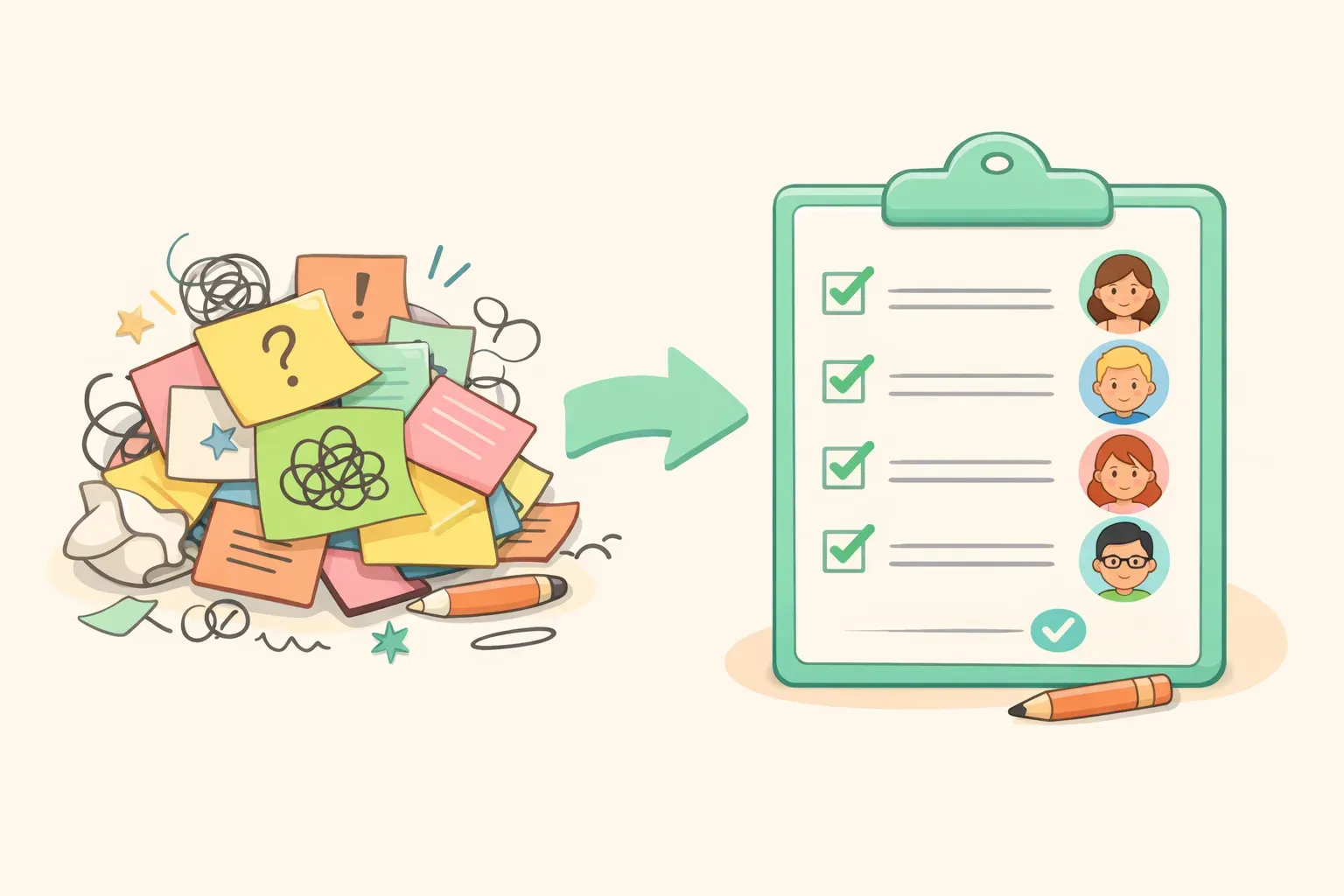
Cartoon of messy meeting notes on the left transforming into a tidy checklist with assigned owners on the right
The 10 Meeting Prompts
Each prompt uses {{double curly braces}} for the parts you swap in — paste your notes or transcript where it says {{transcript}}, and fill in the rest. They're written for today's models (ChatGPT's GPT-5.5, Claude Opus 4.8, Google's Gemini 3 Flash), but they aren't picky — any current AI assistant will handle them. As always, treat the output as a strong first draft, not gospel.
1. The 30-Second Executive Summary
For when a busy leader needs the outcome and nothing else. This one strips the play-by-play and gives you decisions and impact.
You are an executive assistant. Read the meeting notes below and write a TL;DR for a busy leader who was not in the room.

Output exactly:
1. A one-sentence headline of what this meeting was really about
2. "Key outcomes" — 3 bullets
3. "Decisions made"
4. "Risks or timeline impacts"

Ignore small talk, scheduling logistics, and minor tangents. Do not use vague phrases like "the team discussed" — state what was actually decided. Keep it under 150 words.

Notes:
{{transcript}}
2. Action Items With Owners and Due Dates
The one you'll use most — and the one most likely to go wrong, because AI loves to assign tasks to people who never agreed to them. The rule in this prompt forces it to flag anything unclear instead of guessing.
Extract every action item from the notes below into a table with these columns: Task | Owner | Due Date | Priority (High/Medium/Low).

Rules:
- Only create a row when there is a clear task.
- If the owner was not clearly stated, write "UNASSIGNED." If no due date was given, write "TBD." Never guess an owner or a date.
- Below the table, add a section titled "Needs clarification" listing any task where the owner or deadline is missing.

Notes:
{{transcript}}
That UNASSIGNED / TBD instruction is the whole trick. Without it, the AI fills the gaps with confident-sounding fiction, and you find out three weeks later that "someone" was supposed to email the client.
3. Formal Meeting Minutes
For boards, committees, and anything that becomes an official record. The constraints matter here — an official record that invents a vote is worse than no record at all.
You are a professional minute-taker. From the notes below, produce formal meeting minutes in this structure:

- Meeting title, date, and time
- Attendees (and anyone noted as absent)
- Agenda items discussed
- Decisions made (numbered)
- Action items (table: Owner | Action | Deadline)
- Open questions / parking lot
- Next meeting

Use neutral, factual language. Do not add commentary or interpretation, and do not invent motions, votes, names, or any detail that is not in the notes.

Notes:
{{transcript}}
4. Summarize a Long Zoom or Teams Transcript
Raw transcripts are messy — "Speaker 1," timestamps, half-sentences, 60 minutes of it. This prompt is built for that, and it borrows a technique straight from Anthropic's own prompting guide.
{{transcript}}

Above is a raw meeting transcript. First, find and quote the 5–8 most important moments — decisions, commitments, and disagreements. Then, using only those quotes, write a summary with:
- Context (one line)
- Key decisions
- Action items (Owner, Due date — write UNASSIGNED/TBD if not stated)
- Open questions

The speaker labels may be generic (Speaker 1, Speaker 2). Attribute statements to the label given. Do not guess anyone's real name.
Turn the meeting into the email you owe everyone — with each person's tasks called out so nobody can claim they didn't see theirs.
Using the meeting notes below, write a short follow-up email to attendees.

Structure:
- A one-line thank you
- "Quick recap" — 3 to 4 key points
- "Decisions made"
- "Your action items" — grouped by person, each with its deadline
- A closing line confirming the next meeting (if one was set)

Professional but warm. Under 200 words.

Notes:
{{transcript}}
Grouping action items by person is the small touch that makes a recap actually work — everyone scrolls straight to their own name. For more on nailing the tone, see AI prompts for professional emails.
6. The Decisions Log
Teams rarely forget what they decided — they forget why, and then re-litigate it a month later. This prompt captures the reasoning and the roads not taken.
Build a decision log from the notes below. For each decision, output a row:

Decision | Why (one line) | Decision owner | Alternatives considered or rejected

Only log decisions that were actually agreed — not topics that were merely discussed. If something was explicitly postponed, list it separately under "Deferred — not yet decided."

Notes:
{{transcript}}
7. Open Questions, Blockers, and Risks
What falls through the cracks usually isn't the decisions — it's the unresolved things everyone assumed someone else was tracking.
From the notes below, pull three separate lists:

A. Open questions — things asked but never answered
B. Blockers — anything stopping progress, and who or what is blocked
C. Risks or concerns raised

Note who raised each item. Do not include anything that was resolved during the meeting. If a list has nothing in it, write "None identified."

Notes:
{{transcript}}
8. The Sales or Client Call Summary
A generic summary throws away the gold in a sales call. This one keeps the buying signals, the objections, and the next move.
You are a sales assistant. Summarize the following client call for our records.

Sections:
- Key points (3–5 bullets)
- Client pain points
- Buying signals (timeline, budget, or intent cues)
- Objections or concerns (quote the client where possible)
- Competitor mentions
- Next steps (action, owner, due date)

Only list next steps that move the deal forward.

Call notes:
{{transcript}}
9. 1:1 and Sensitive Meeting Notes
Notes from a 1:1 or a performance conversation can resurface in an HR file later, so the rules here keep the AI from editorializing about a real person.
Summarize these 1:1 notes between a manager and their direct report.

Sections:
- Main topics discussed
- Concerns raised by the report
- Wins to recognize
- Manager follow-ups before the next 1:1

Rules: separate facts from interpretation (label anything that's an inference). Use neutral language — no evaluative labels like "strong performer" or "problematic." Stick to what was actually said.

Notes:
{{transcript}}
This is the highest-sensitivity prompt in the list. Re-read the privacy check above before you paste anything from a performance conversation — and when in doubt, redact the name.
10. Turn a Summary Into a Prioritized Task List
Once you have a summary, this turns it into something you can actually work from — ranked, sized, and sorted.
Here is a meeting summary: {{summary}}

Convert every action item into a prioritized task list. For each task, output:

Priority (P1/P2/P3) | Task | Owner | Due date | Effort (S/M/L)

Sort by priority, P1 first. Put anything that's blocked or missing an owner in a separate "Needs clarification" section at the bottom.
How to Handle a Long Meeting Transcript
A two-hour meeting produces a wall of text, and at some point the AI starts dropping things from the beginning. Here's what's actually going on, and how to work around it.
First, forget the old "character limit" myth. AI models read in tokens (chunks of words), and the real limit is how much they can hold at once. The catch: consumer ChatGPT holds far less than people assume, while Claude and Gemini can each take roughly a million tokens — enough for a very long transcript. If you're pasting a marathon meeting, Claude or Gemini will choke less often.
When a transcript is too long to paste in one go, don't fight it — break it up:
Split the transcript by agenda section or topic, not mid-sentence.
- Summarize each chunk on its own.
Then paste the chunk summaries back in and ask for a "summary of the summaries."
This "summarize in passes" approach is how you get through a 90-minute meeting without the AI quietly forgetting the first half.
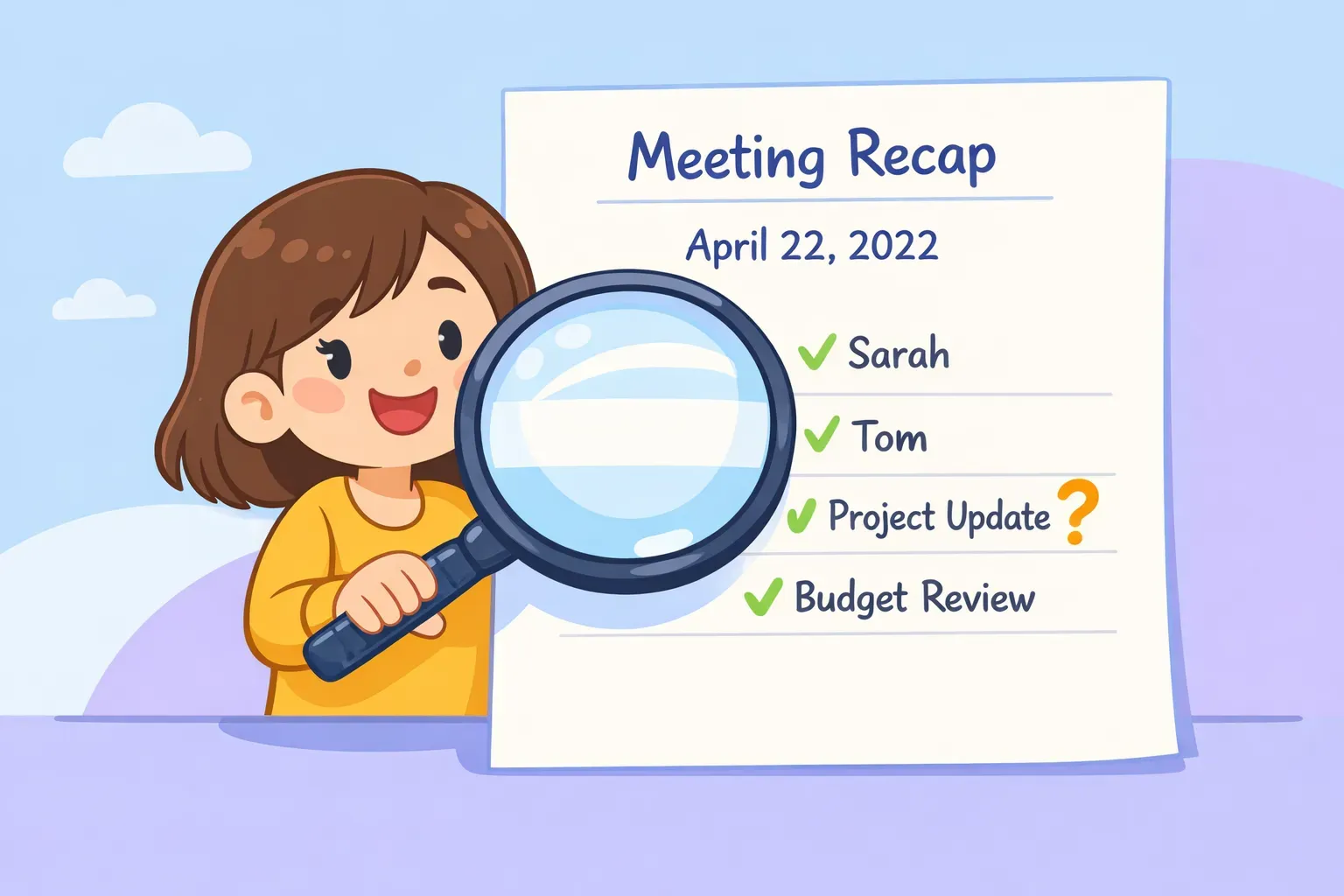
Cartoon of a person reviewing an AI-generated meeting recap with a magnifying glass, checking owners and dates before sending
The One Step Everyone Skips: Check It Before You Send
Here's the uncomfortable truth about AI meeting summaries: they're confident, well-formatted, and sometimes wrong. The danger isn't gibberish — it's a clean, plausible action item assigned to the wrong person, or a "decision" that was actually still up for debate.
This isn't hypothetical. When researchers studied OpenAI's Whisper transcription tool, one found invented text in 8 of every 10 audio transcriptions of public meetings — words that were never spoken. Summarization models are better behaved than that, but the lesson holds: AI fills gaps with plausible fiction, and meeting notes are mostly gaps.
So before you hit send, do a quick pass:
Scan the owners. Does each name actually match someone who agreed to that task? Anything marked UNASSIGNED is a cue to go ask, not a failure.
- Spot-check two or three action items against your memory or the transcript.
Watch for invented specifics — exact dates, dollar figures, or "decisions" you don't remember making.
- Delete confidently. If a line feels off, cut it. A shorter accurate recap beats a complete fictional one.
This is exactly why the prompts above force UNASSIGNED and TBD instead of guesses: they make the AI show you the gaps rather than paper over them.
Make Your Meeting Prompts Reusable
If you run the same kinds of meetings every week — a standup, a client check-in, a 1:1 — you don't want to rewrite these prompts each time or dig through old chats to find the one that worked. The whole point is reuse.
The trick is to save each prompt once, with {{variables}} for the parts that change. Your action-items prompt stays exactly the same; only the {{transcript}} swaps out, and you get the same clean format every Monday without thinking about it. (More on this in variables in AI prompts.)
This is what PromptNest was built for. You save a prompt once with placeholders like {{transcript}} or {{meeting_type}}, and when you need it, a small form pops up to fill in the blanks — the finished prompt lands on your clipboard, ready to paste into ChatGPT, Claude, or Gemini. It's a native Mac app, so your meeting prompts are a single keyboard shortcut away from any window.
The Three Rules That Make Any Meeting Prompt Work
You don't need to memorize ten prompts. You need three habits, and they'll fix almost any meeting summary:
Be specific about the shape. Give the AI a role and the exact sections or columns you want. "Summarize this" is how you get mush.
2. Make it flag gaps, not fill them. Tell it to write UNASSIGNED or TBD when an owner or date is missing, so it never invents one.
Read it before you send it. Thirty seconds of checking owners and dates is the difference between a recap people trust and one that creates new problems.
Your Next Meeting, Handled
Start simple: pick the two prompts you'll use most — most people land on the action-items table and the recap email — and save them somewhere you can grab them fast. A note, a doc, whatever you'll actually open.
If you'd rather not hunt through notes every time, PromptNest keeps your meeting prompts organized and a keyboard shortcut away, with the {{variables}} built in so you just drop in the transcript and go. It's a native Mac app — a one-time $19.99 on the Mac App Store, no subscription — built for exactly this kind of reuse. Either way, the goal's the same: walk out of your next meeting knowing the follow-up will write itself.