Stop rewriting the same prompt for every client, topic, or project. Variables let you create reusable templates that work in seconds.
You've written this prompt before. Maybe not word-for-word, but close enough. Last week it was for Client A. Today it's Client B. Same structure, same instructions — just swap out a few details. So you dig through your chat history, find the old prompt, copy it, paste it, manually change the names and specifics, double-check you didn't miss anything...
And you'll do it all again tomorrow.
There's a better way. Prompt variables let you write a prompt once, mark the parts that change, and reuse it forever. No more hunting through old conversations. No more find-and-replace anxiety. Just fill in the blanks and go.
What Are Prompt Variables?
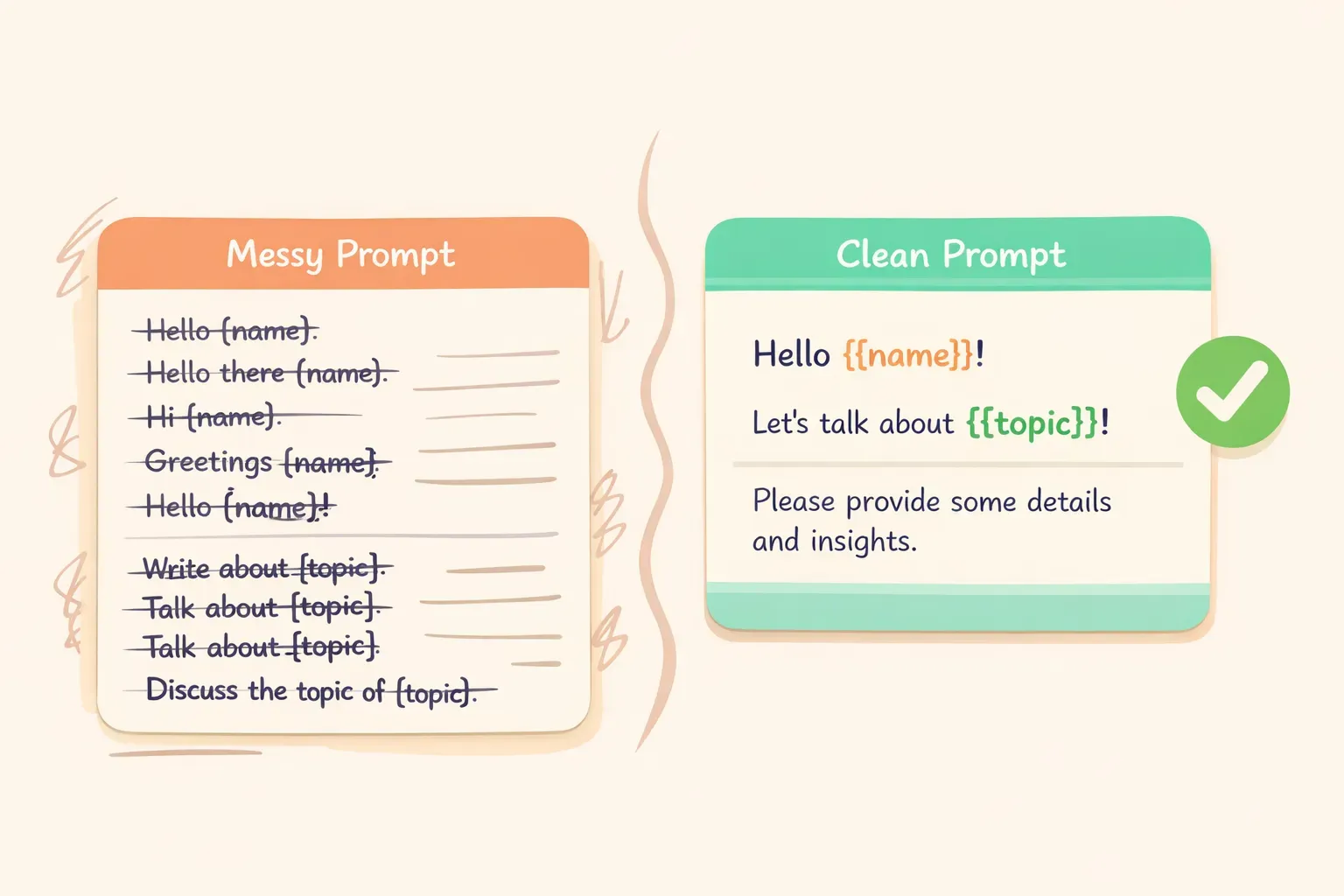
A prompt variable is a placeholder in your prompt that you swap out with real content each time you use it. Instead of writing the same prompt repeatedly with small changes, you write it once with placeholders — then fill in those placeholders when you need it.
The most common syntax uses double curly brackets: {{variable_name}}. This convention comes from templating languages and is used by tools like the Claude Console, prompt management platforms, and apps like PromptNest.
Here's a simple example. Instead of this:
Write a professional email to John thanking him for the meeting yesterday. Keep it brief and friendly.
You'd create this template:
Write a professional email to {{recipient_name}} thanking them for {{reason_for_thanks}}. Keep it brief and friendly.
Now that template works for anyone, for any reason. Swap in the values, and you've got a ready-to-paste prompt.
Why Variables Beat Copy-Paste
You might think, "I can just copy-paste and change the words manually." And you can. But here's what that actually looks like over time:
The copy-paste workflow:
Remember you wrote a good prompt for this task
Search through chat history (or notes, or documents) to find it
Copy the prompt
Read through it to identify what needs to change
Manually edit each piece
Hope you didn't miss one ("Dear [CLIENT NAME]" — oops)
Paste into AI and cross your fingers
The variable workflow:
Open your saved template
Fill in the blanks
Copy and paste
According to research from digital agencies, teams using structured prompt templates report 67% productivity improvements. That's not because the prompts are magic — it's because they eliminate the friction of rewriting and the errors that come with manual editing.
Comparison showing messy repeated prompts versus a clean template with variable placeholders
Variables also enforce consistency. When you manually rewrite prompts, small changes creep in. You phrase things differently, forget a constraint you'd added, or leave out context that made the original work. Templates keep your best prompts frozen in their best form.
How to Write a Prompt with Variables
Converting a regular prompt into a template takes three steps:
Step 1: Write a prompt that works. Start with a concrete example. Get it working for one specific case before you generalize it.
Step 2: Identify what changes. Look at the prompt and ask: "If I used this for a different client/topic/project, what would I change?" Those are your variables.
Step 3: Replace the specifics with placeholders. Use clear, descriptive names in {{double_brackets}}. Choose names that make it obvious what goes there.
Here's this process in action. Say you wrote this prompt for summarizing meeting notes:
Summarize the following meeting notes from the Q1 planning session. Extract:
- Key decisions made
- Action items with owners
- Open questions

Keep the summary under 200 words.

Meeting notes:
The team discussed the product roadmap for Q1. Sarah will lead the new onboarding flow redesign. Mike raised concerns about the timeline for the API integration...
What changes between uses? The meeting name and the notes themselves. Here's the template:
Summarize the following meeting notes from {{meeting_name}}. Extract:
- Key decisions made
- Action items with owners
- Open questions

Keep the summary under 200 words.

Meeting notes:
{{meeting_notes}}
Now you can use this for any meeting. The structure and instructions stay consistent — only the content changes.
5 Prompt Templates You Can Use Today
Here are practical templates for common tasks. Copy them, adjust for your needs, and save them somewhere you can find them again.
1. Professional Email Response
Write a professional email response to the following message.

Context: {{context_about_situation}}
Tone: {{desired_tone}}
Key points to include: {{main_points}}

Original email:
{{original_email}}
This template works for client emails, internal responses, or vendor communications. The {{context_about_situation}} variable lets you add background the AI wouldn't otherwise know.
2. Content Summarization
Summarize the following {{content_type}} for {{audience}}.

Format: {{output_format}}
Length: {{word_count}} words maximum

Content:
{{content_to_summarize}}
{{audience}}: "executives who want the key takeaways", "the engineering team", "someone with no background in this topic"
{{output_format}}: "bullet points", "three paragraphs", "a single sentence followed by details"
Illustration of filling in variable placeholders in a prompt template
3. Feedback Request
Review the following {{content_type}} and provide constructive feedback.

Focus areas: {{areas_to_focus_on}}
Tone: Be direct but encouraging

{{content_to_review}}

Format your feedback as:
1. What's working well (2-3 points)
2. What could be improved (2-3 specific suggestions)
3. One priority change to make first
4. Social Media Post Ideas
Generate {{number_of_posts}} social media post ideas for {{platform}}.

Topic: {{topic}}
Brand voice: {{brand_voice_description}}
Goal: {{post_goal}}

For each post, include:
- The post text (under {{character_limit}} characters)
- A suggested image or visual description
- Best time to post (if relevant)
5. Explaining a Concept
Explain {{concept}} to {{audience_description}}.

Constraints:
- Avoid jargon: {{terms_to_avoid}}
- Use analogies related to: {{familiar_domain}}
- Length: {{length_preference}}

Start with why this matters to them, then explain the concept, then give one practical example.
This one's useful for documentation, teaching, or client communication. The {{familiar_domain}} variable helps the AI pick relatable analogies — for a real estate client, you might say "use analogies related to buying a home."
Common Mistakes to Avoid
Variables are simple, but there are a few pitfalls:
Too many variables. If your template has 10+ placeholders, it's probably doing too much. Either split it into multiple templates or hardcode the parts that rarely change. A template with too many blanks takes as long to fill out as writing from scratch.
Vague variable names.{{text}} tells you nothing. {{customer_complaint_summary}} tells you exactly what to put there. Be specific. Your future self will thank you.
Forgetting the variable syntax when pasting. If you see {{client_name}} in your AI's response, you forgot to fill in that variable before pasting. Always do a quick scan for leftover brackets.
Not including instructions for complex variables. For longer inputs like {{meeting_notes}} or {{document_text}}, consider adding a hint in the template: "Paste the full meeting notes below" or "Include the complete email thread." This helps when you (or a teammate) use the template later.
Where to Store Your Templates
A prompt template is only useful if you can find it. Most people's best prompts are buried in ChatGPT history, lost in a note somewhere, or vaguely remembered but impossible to locate.
You have options:
A simple note or document — works for a handful of prompts, gets messy fast
A spreadsheet — better organization, but awkward for long prompts with formatting
A dedicated prompt manager — purpose-built for this workflow
If you're going to build a real library of templates, a purpose-built tool helps. PromptNest is designed specifically for this — you store prompts with {{variables}} built in, organize them by project or category, and copy them with one click. When you copy, it can prompt you to fill in each variable, so the final prompt is ready to paste directly into ChatGPT, Claude, or whatever AI you use.
The key is having some system. The tool matters less than the habit of saving prompts that work.
Start With One Prompt
You don't need to overhaul your entire workflow today. Start with one prompt you use regularly — maybe drafting emails, summarizing notes, or generating content ideas. Write it out, identify the parts that change, and convert them to variables.
Save it somewhere you can find it. Use it a few times. Notice how much faster the second and third uses are compared to writing from scratch.
Then do it again with the next prompt you find yourself rewriting. Over time, you'll build a library of templates that represent your best thinking — ready to use whenever you need them.
If you want a dedicated home for that library, PromptNest is a native Mac app for organizing prompts with variables — $19.99 one-time on the Mac App Store, no subscription, no account, runs locally on your machine, and works with any AI. But even a well-organized Google Doc will get you 80% of the way there.
The point isn't the tool. It's stopping the cycle of rewriting the same prompts over and over — and finally getting that time back.