Best AI Tools for Email Writing: A Hands-On Comparison
We tested the AI tools real people use to write work and personal emails — which to pick, the prompts that work, and how to keep it sounding like you.
You open your inbox, see fourteen unread messages, and feel your morning evaporate. One needs a careful reply to an annoyed client. One is a meeting you have to politely turn down. One is your boss asking for an update you haven't started. None of them are hard, exactly — they just take time you don't have.
This is the gap AI email tools are built to close. The average business email user sends and receives about 126 emails a day, and a classic McKinsey study found knowledge workers spend around 28% of the workweek just reading and answering email. That's more than a day a week, gone.
The good news: the tools genuinely help. A controlled MIT study published in Science gave professionals ChatGPT for business writing tasks and watched their writing time drop about 40% while quality rose 18%. The catch: a heavily-AI email can also backfire in ways most "best tools" lists never mention. This guide covers both — which tool to use for which job, the prompts that actually work, and how to keep your email sounding like a human wrote it.
What "Best" Means Here
Most AI email roundups are quietly written for one person: a salesperson blasting cold outreach. That's why they rank marketing-copy generators and score everything on "reply rates."
This guide is for everyone else — the people writing the emails that fill a normal inbox. Replies to customers. A note declining a meeting. A follow-up that's gone quiet. An apology. Asking your manager for something. So we judged these tools on real-world, everyday writing, not campaign output.
The tools split into five honest categories. There's no single "best" — the right one depends on where you already write your email and how much you want to spend.
The Flexible All-Rounders: ChatGPT, Claude, and Gemini
The general-purpose chatbots are the cheapest and most flexible option, and for most people they're the place to start. You paste in the email you're replying to (or a few bullet points), tell it what you want, and it writes a draft you can refine. The workflow is copy-and-paste — there's no inbox integration — but in exchange you get total control over tone, length, and angle.
How the three compare for email, in practice:
ChatGPT is the all-purpose default. Fast, capable, and great at quick drafts and rewrites. Free tier handles most email writing; Plus is $20/month if you want higher limits.
Claude tends to write the most natural-sounding prose and is especially strong at matching a specific tone and handling long, sensitive messages. Free tier available; Pro is $20/month.
Gemini is the natural pick if you live in Gmail (more on that below). Strong everyday writer; deeper features come with Google AI Pro at $19.99/month.
If you want a deeper side-by-side of how these three actually write, we compared them in ChatGPT vs Claude vs Gemini for Writing. For email specifically, the honest answer is that any of the three will do the job well — the bigger difference is how you prompt them, which we cover further down.
Built Into Your Inbox: Gemini in Gmail and Copilot in Outlook
If copy-pasting into a separate tab sounds like a hassle, your email app probably already has AI built in. This is the lowest-friction option because the draft appears right where you're already typing.
Gmail (Gemini). Google's "Help me write" drafts an email from a short instruction, polishes what you've written, and suggests context-aware one-click replies. The core writing features are free for Gmail users; deeper tools like inbox Q&A sit behind Google AI Pro.
Outlook (Microsoft Copilot). Copilot drafts emails and replies, summarizes long threads, and offers "coaching" tone suggestions right inside Outlook. Full integration needs a paid license — Copilot Pro is $20/month for individuals. It's the obvious choice if your work runs on Microsoft 365.
The trade-off with built-in tools is flexibility. They're excellent for a quick "draft a polite reply," but when you need a tricky email handled with care, a full chatbot gives you more room to direct the result.
The Polish Layer: Grammarly
Grammarly sits on top of whatever you're already using — Gmail, Outlook, anything with a text box — and works as an editor rather than a writer. Beyond catching typos, it can rewrite for tone, shorten a rambling draft, or adjust a message for a specific audience without you leaving your inbox.
It's the best fit if you mostly write your own emails but want a second set of eyes before you hit send. The free plan includes a monthly allowance of AI prompts; Pro is $12/month (billed annually) for heavier use. Think of Grammarly as a finishing layer, not a from-scratch drafter.
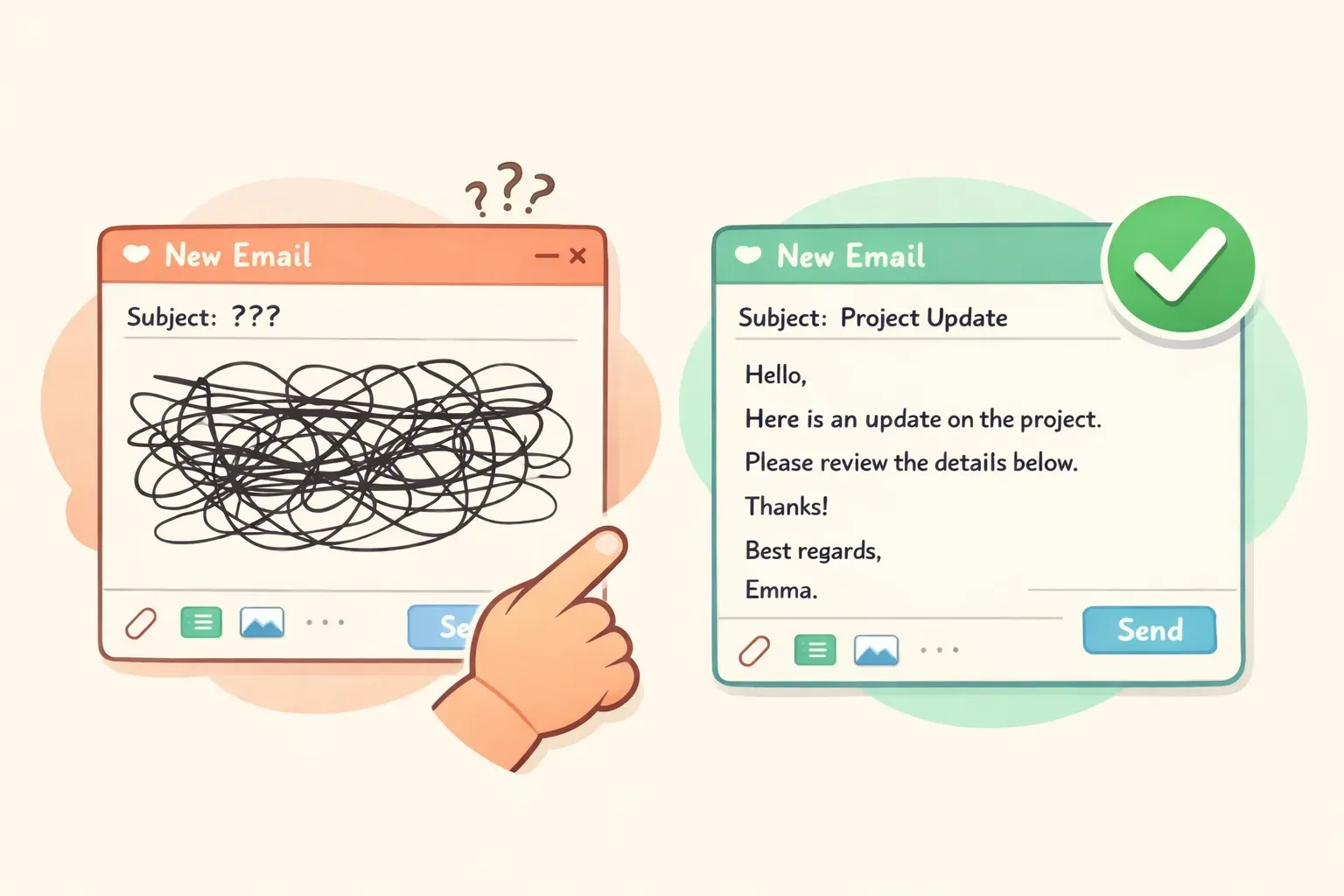
A messy tangled email draft next to a clean tidy email with a green checkmark, illustrating AI cleaning up an email
Power-User Email Clients: Superhuman and Shortwave
If email is most of your job, a dedicated AI email client rebuilds the whole inbox around speed. These aren't add-ons — they replace your email app.
Superhuman writes in your voice, drafts replies automatically, and summarizes threads, all wrapped in a famously fast keyboard-driven interface. It's a premium product — email features sit on the Business tier at around $33/month. Shortwave offers similar AI drafting, search, and summaries on top of Gmail, with a free plan for personal Gmail and paid tiers (Business around $24/user/month) for heavier use. Note that Shortwave is Gmail/Workspace only — no Outlook.
Honest take: these are powerful but priced for people drowning in email all day. If you send a few dozen messages a week, a chatbot or your inbox's built-in AI will serve you just as well for a fraction of the cost.
Speak It, Don't Type It: Dictating Emails With Voicr
Here's a category every other roundup skips: what if you didn't type your emails at all? Most people speak far faster than they type, and for a long reply that can be a real time-saver — if the messy spoken version gets cleaned up automatically.
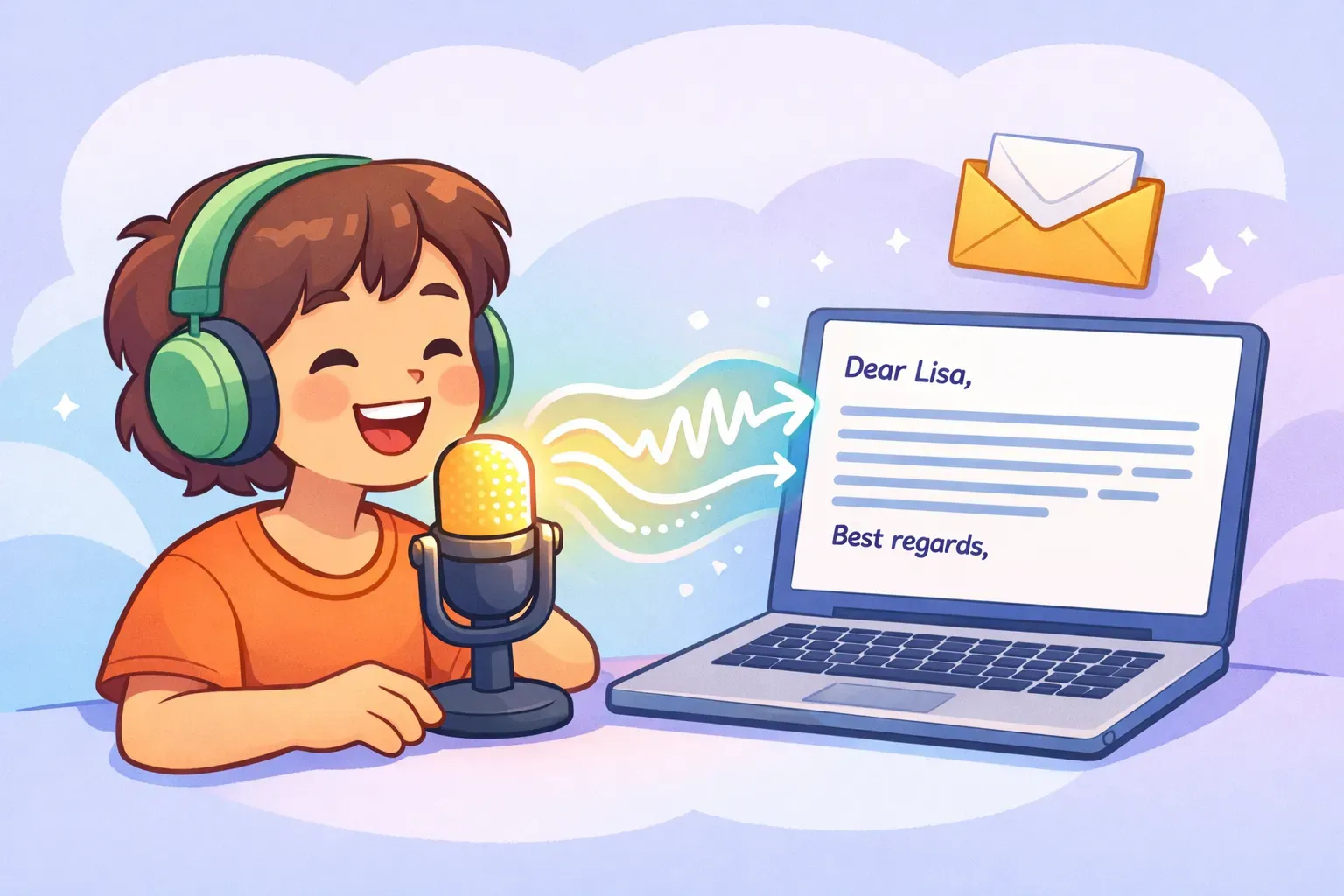
Voicr is a Mac app built around exactly that. You hold a key, speak, and your words are auto-pasted into whatever app you're in — including Gmail or Outlook — already cleaned up. Its AI writing layer removes filler words ("um," "you know"), fixes grammar, and calibrates tone, so a rambling out-loud thought lands as a tidy written paragraph rather than a raw transcript.
The detail that makes it useful for email is Smart Rules: you can set a per-app tone, so Voicr automatically writes formally when you're in your email client and casually when you're in a chat app. It also handles 100 languages with live translation, and the company says it doesn't store your data on its servers after processing.
It's Mac only (macOS 14 or later) and runs on a subscription, but there's a genuinely usable free tier of 5,000 words a month, with Go at $3/month and Pro at $10/month for more. If you find typing the slow part of email — or you think out loud better than you write — speaking your drafts is worth trying.
A person speaking into a microphone with sound waves turning into a neatly typed email on a laptop, illustrating voice dictation for email
How to Actually Prompt AI to Write a Good Email
Whichever tool you pick, the output is only as good as your instructions. "Write an email to my boss" produces generic mush. The fix is a simple four-part formula, and it works in ChatGPT, Claude, or Gemini alike:
Context — who you're writing to and what's going on
Goal — what you want to happen
Tone — formal, warm, direct, apologetic
Constraints — length, format, what to avoid
Here are copy-paste prompts for the emails people actually dread. Each uses {{double-brace}} placeholders — swap in your details before sending. They're written for any current chatbot.
Turn rough notes into a polished email
Turn these rough notes into a clear, professional email to {{recipient}}:
- {{point_1}}
- {{point_2}}
- {{point_3}}

Goal: {{what_you_want_to_happen}}. Tone: {{friendly but professional}}. Keep it under 120 words and add a subject line.
Reply to an upset customer
A customer sent this complaint: "{{paste_their_email}}"

Write a reply that (1) acknowledges their frustration in the first sentence, (2) takes responsibility without being defensive, (3) gives a concrete fix and an exact timeline, and (4) offers a contact for follow-up. Tone: calm, warm, professional. Under 150 words.
Politely decline a meeting
Write a short, polite email declining this meeting invite: "{{paste_invite}}". My reason: {{conflicting_deadline}}. Don't over-explain. Thank them, decline clearly, and offer an alternative: {{review_the_notes_after / send an async update}}. Keep it warm. Under 80 words.
Follow up when there's been no reply
Write a brief follow-up to {{recipient}} about {{topic}}. We last spoke {{when}} and I haven't heard back. Don't open with "just checking in." Add one new reason for them to reply: {{new_info_or_value}}. Friendly, low-pressure, under 60 words.
Ask your manager for a raise
Help me write an email to my manager {{name}} requesting a raise. My case: I {{accomplishment_with_a_number}}, took on {{added_responsibility}}, and the market rate for my role is {{amount}}. Frame it as a confident business case, not a plea. Specific ask: {{target_salary_or_percent}}. Professional, under 180 words.
Write a professional apology
Write a professional apology email for {{specific_mistake}}. Take responsibility without over-apologizing, explain briefly what happened, describe how you're fixing it, and how you'll prevent it next time. Don't grovel or ask for forgiveness. Sincere and direct, under 200 words.
Notice how often the same email comes up — the customer reply, the follow-up, the polite no. If you write variations of these constantly, you don't want to retype the prompt every time. This is where saving them with variables pays off: a tool like PromptNest lets you store a prompt with its {{placeholders}} built in, then fill in the blanks and copy the finished version in one click — no hunting through old chats for the wording that worked.
How to Keep It From Sounding Like AI
The single most common worry people have about AI email is that the recipient will be able to tell. They're not wrong to worry — AI writing has tells, and readers have learned them.
The usual giveaways: opening with "I hope this email finds you well," over-formal stiffness, an em dash in every sentence, robotic bullet lists where a sentence would do, and generic praise that doesn't sound like a real person noticing a real thing. Strip those out and most "AI-ness" disappears.
Two practical fixes. First, tell the AI to drop the tells directly: add "no clichés, no em dashes, no exclamation points, write like a real person, not a press release" to your prompt. Second — and this is the strong move — feed it your own voice:
Here are three emails I've written: {{paste_3_of_your_emails}}.

Study my tone, my sentence length, and how formal I am. Now write an email to {{recipient}} about {{topic}} that sounds like me — not like AI.
We go deeper on this in How to Get AI Prompts That Sound Like You. And remember the counterintuitive truth: shorter usually beats more polished. Over-polishing is itself a tell. A two-line reply that sounds like you beats a flawless five-paragraph essay that sounds like a corporate brochure.
Is It Even OK to Use AI for Email?
This is the question the other guides skip, and it matters more than which tool you pick. Using AI to help with email is normal now — about 28% of employed US adults use ChatGPT for work, up from 8% in 2023, and 75% of knowledge workers use generative AI on the job. You're not doing anything unusual.
But how much AI shows matters. In a 2025 study of 1,100 professionals, when supervisors leaned heavily on AI for their emails, only 40 to 52% of employees rated them as sincere — versus 83% for lightly-assisted messages. Perceived professionalism fell too. The lesson isn't "don't use AI." It's that AI should help you write your message, not replace it — especially for anything personal, like a thank-you, a condolence, or a one-on-one with someone who matters.
Two more honest cautions. On disclosure: it feels right to mention you used AI, but early research suggests saying so can actually lower how much people trust the message. The safer rule is to use AI for structure and speed, keep the judgment and the facts yours, and let the result stand on its own.
On privacy: don't paste confidential client details, contracts, or sensitive personal information into a free chatbot. On free and personal tiers, your inputs may be used to train the model. For anything sensitive, use a business or enterprise tier that excludes your data from training — or don't paste the confidential parts at all and fill them in yourself afterward.
So Which One Should You Use?
Skip the agonizing — here's the short version by situation:
You want one flexible, low-cost tool: start with ChatGPT, Claude, or Gemini. Free tiers cover most email writing.
You live in Gmail: use Gemini's built-in "Help me write." It's right there and mostly free.
You live in Outlook / Microsoft 365:Copilot is the natural fit.
You write your own emails but want polish: add Grammarly as an editing layer.
Email is most of your job: a power client like Superhuman or Shortwave earns its price.
Typing is your bottleneck (and you're on a Mac): dictate with Voicr and let it clean up the result.
The Practical Takeaway
There's no single best AI email tool — there's a best one for your inbox, your budget, and the kind of email in front of you. For most people, a free chatbot plus a good prompt covers 90% of the work. Layer on your inbox's built-in AI for speed, a polish tool if you want a safety net, and voice dictation if typing is the slow part.
Whatever you choose, the real unlock isn't the tool — it's having the right prompt ready when you need it. The four-part formula and the prompts above will get you better emails today. The trick is not losing them.
Start by saving your three or four most-used email prompts somewhere you can actually find them — a note, a doc, whatever works. Or if you want something purpose-built, PromptNest is a native Mac app (a one-time $19.99 on the Mac App Store, no subscription) that keeps your prompts organized, searchable, and ready from any app with a keyboard shortcut. Fill in the {{variables}}, copy, paste, send — and get your morning back.