System Prompts vs. User Prompts: What's the Difference?
Every AI chat runs on hidden instructions you never wrote. Here's what system prompts do, why they matter, and how to write better user prompts knowing they exist.
You open ChatGPT and ask a simple question. The AI responds politely, stays on topic, and refuses to help you write malware. None of that is an accident.
Behind every conversation with an AI assistant, there's a hidden layer of instructions you never see. These instructions — called the system prompt — shape how the AI behaves before you type a single word. Your question is just the second half of the equation.
Understanding the difference between system prompts and user prompts won't just satisfy your curiosity. It'll change how you write prompts and why certain approaches work better than others.
What Is a System Prompt?
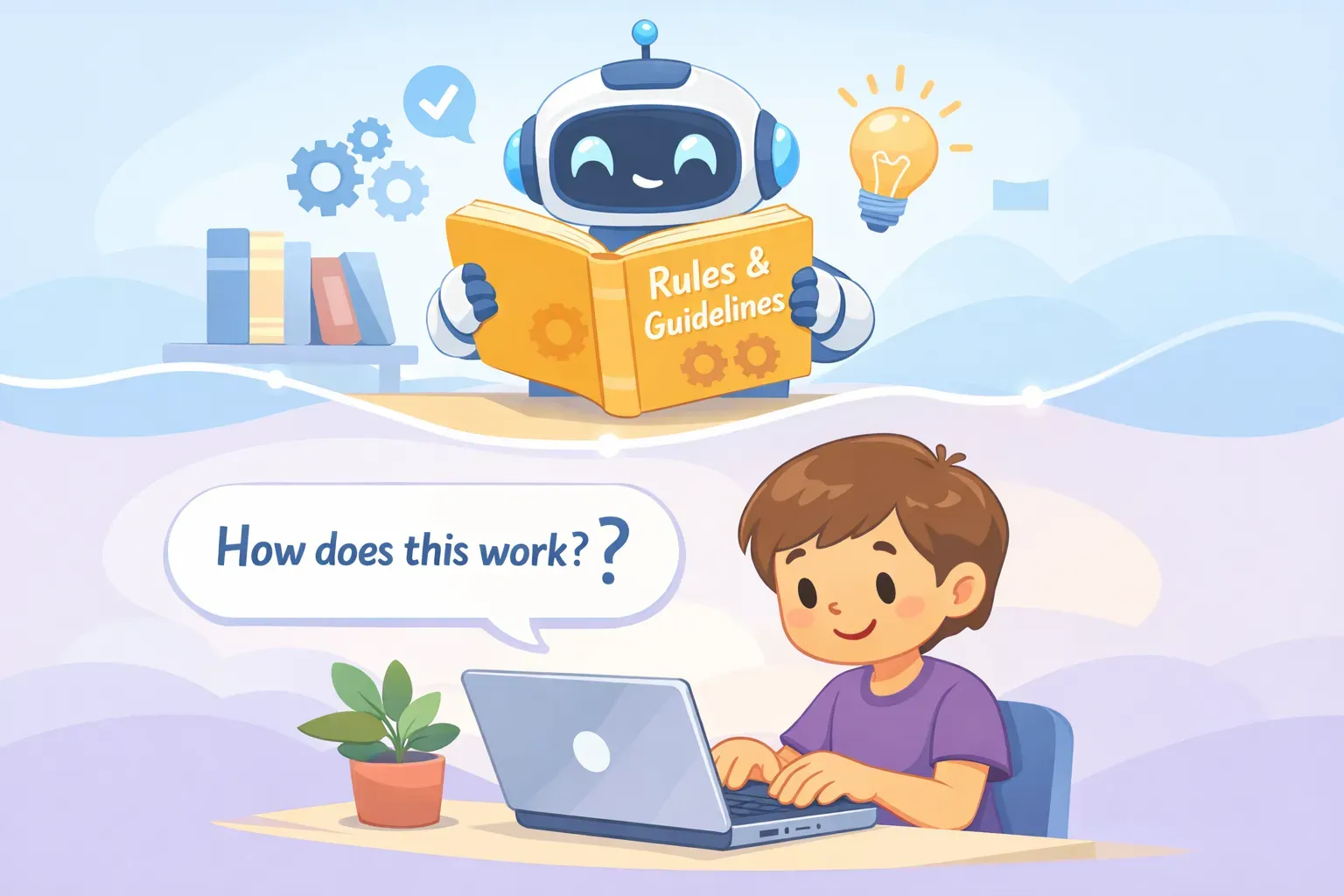
A system prompt is a set of instructions given to an AI before your conversation begins. It defines the AI's personality, capabilities, limitations, and rules. Think of it as an employee handbook that gets read before every shift — it tells the AI who it is and how it should behave.
When you open ChatGPT, Claude, or Gemini, the system prompt has already been loaded. According to PromptLayer's analysis, system prompts typically include:
Role definition — "You are a helpful assistant"
Behavioral guidelines — Be polite, stay on topic, don't make things up
Constraints and limitations — What the AI won't do (generate harmful content, pretend to be human, etc.)
Output formatting rules — How to structure responses
The key thing to understand: you don't write the system prompt. The developers do. When you chat with ChatGPT, OpenAI has already given it instructions. When you use Claude, Anthropic has done the same. You're joining a conversation that's already started.
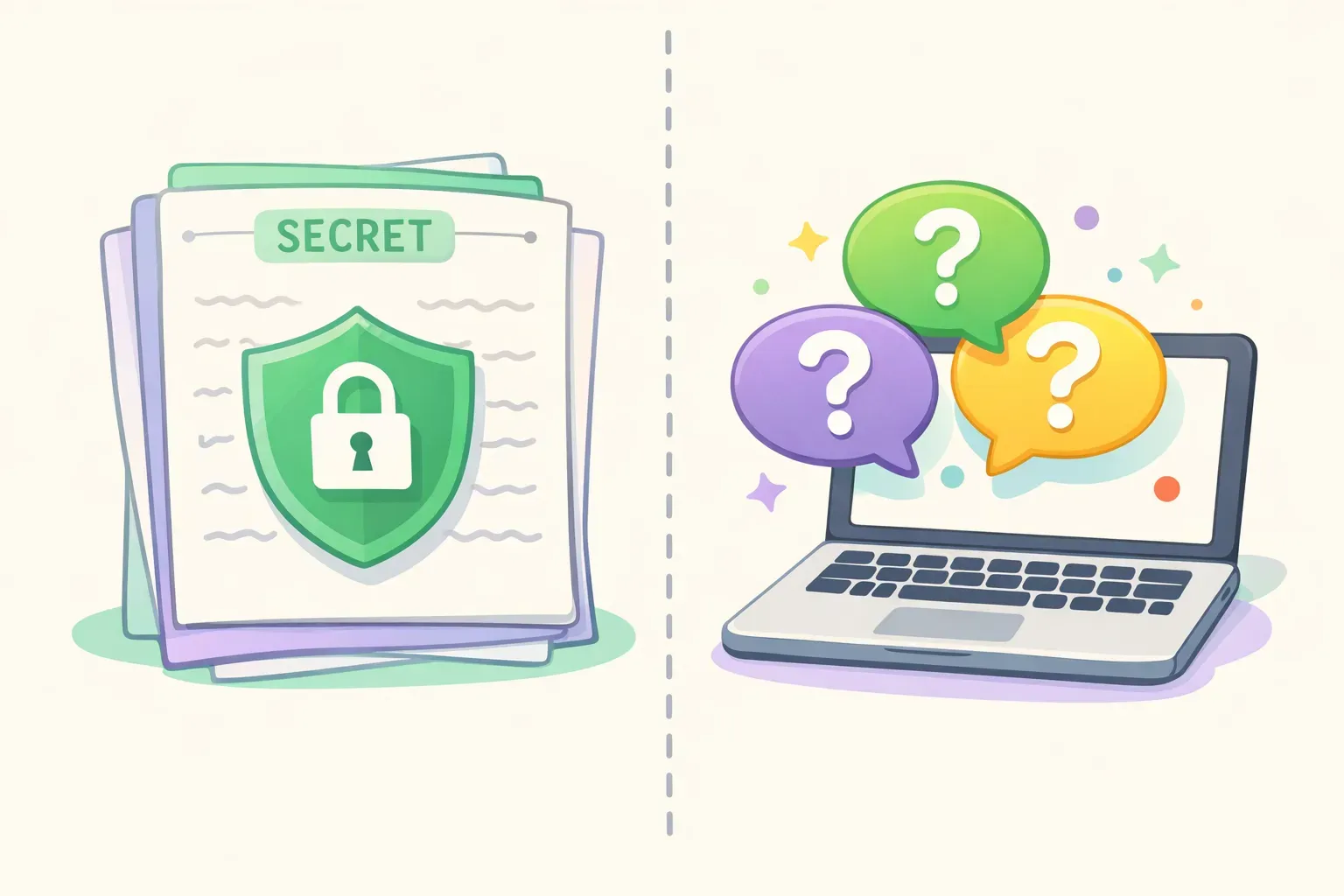
Illustration showing the difference between hidden system instructions and visible user chat messages
What Is a User Prompt?
A user prompt is what you actually type into the chat. It's your question, your request, your instruction. Unlike system prompts, user prompts are dynamic — they change with every message you send.
User prompts can be simple ("What's the capital of France?") or complex ("Write a 500-word blog post about productivity for remote workers, using a casual tone and including three actionable tips"). They're where you communicate what you want the AI to do.
As Regie.ai explains, the system prompt is the "how" and "why" of AI behavior, while the user prompt is the "what" — the specific task you need done right now.
Key Differences at a Glance
Here's a quick comparison:
Who controls it? System prompts are set by developers. User prompts are written by you.
When does it run? System prompts load before the conversation. User prompts happen during the conversation.
Can you see it? System prompts are usually hidden. User prompts are visible — you wrote them.
What does it affect? System prompts shape overall behavior. User prompts drive specific tasks.
How often does it change? System prompts stay constant (per session). User prompts change with every message.
A simple analogy: if AI were an employee, the system prompt is the company policy manual, and the user prompt is the specific task you're assigning today.
Why System Prompts Matter (Even If You Never Write One)
You might think: "I don't write system prompts, so why should I care?" Here's why understanding them changes how you use AI.
It Explains Why AI Refuses Certain Requests
Ever asked ChatGPT something and got a polite refusal? That's the system prompt at work. OpenAI's help documentation explains that prompts are filtered through safety systems trained to detect content that violates their policies. The system prompt tells the AI what it shouldn't do — and that overrides your request.
Understanding this helps you rephrase. Instead of hitting a wall, you can provide context that clarifies your legitimate intent. The safety system responds well to explicit context about why you're asking.
It Explains Why Different AI Tools Feel Different
ChatGPT feels different from Claude. Claude feels different from Gemini. Part of that is the underlying model, but a significant part is the system prompt. Each company defines different personalities, different tones, different constraints.
This is why the same user prompt can produce dramatically different responses across tools. The hidden instructions matter.
It Explains How Custom GPTs Work
When someone creates a Custom GPT in ChatGPT or a Claude Project, they're essentially writing a system prompt. They define how that specific AI instance should behave. When you use a Custom GPT for legal writing, marketing copy, or code review, you're benefiting from someone else's system prompt.
When You Can Control the System Prompt
Most casual AI users never touch system prompts directly. But there are ways to influence them — or access them outright.
ChatGPT Custom Instructions
ChatGPT's Custom Instructions feature is essentially a "system prompt lite." You can tell ChatGPT about yourself ("I'm a freelance writer who works with tech startups") and how you want it to respond ("Be concise, avoid jargon, skip the pleasantries").
These instructions get applied to every new conversation. You're not replacing OpenAI's system prompt — you're adding your own layer on top. According to user reports on OpenAI's community forums, responses align more closely with Custom Instructions than with equivalent instructions given as a user prompt.
Claude Projects
Claude offers a similar feature through Projects. You can set up project-specific instructions that carry across conversations. As Anthropic's documentation explains, Claude Projects let you define persistent context and decision-making criteria that inform every response within that project.
Custom GPTs
If you create a Custom GPT, you write actual system-level instructions. You define the persona, the constraints, the behavior. This is the closest most non-developers get to real system prompting.
API Access
Developers using the OpenAI API or Claude API have full control over system prompts. They can define exactly how the AI behaves for their application. This is how companies build AI products with specific personalities and capabilities.
How to Write Better User Prompts
Now that you know system prompts exist, you can write smarter user prompts. Here's how that knowledge helps.
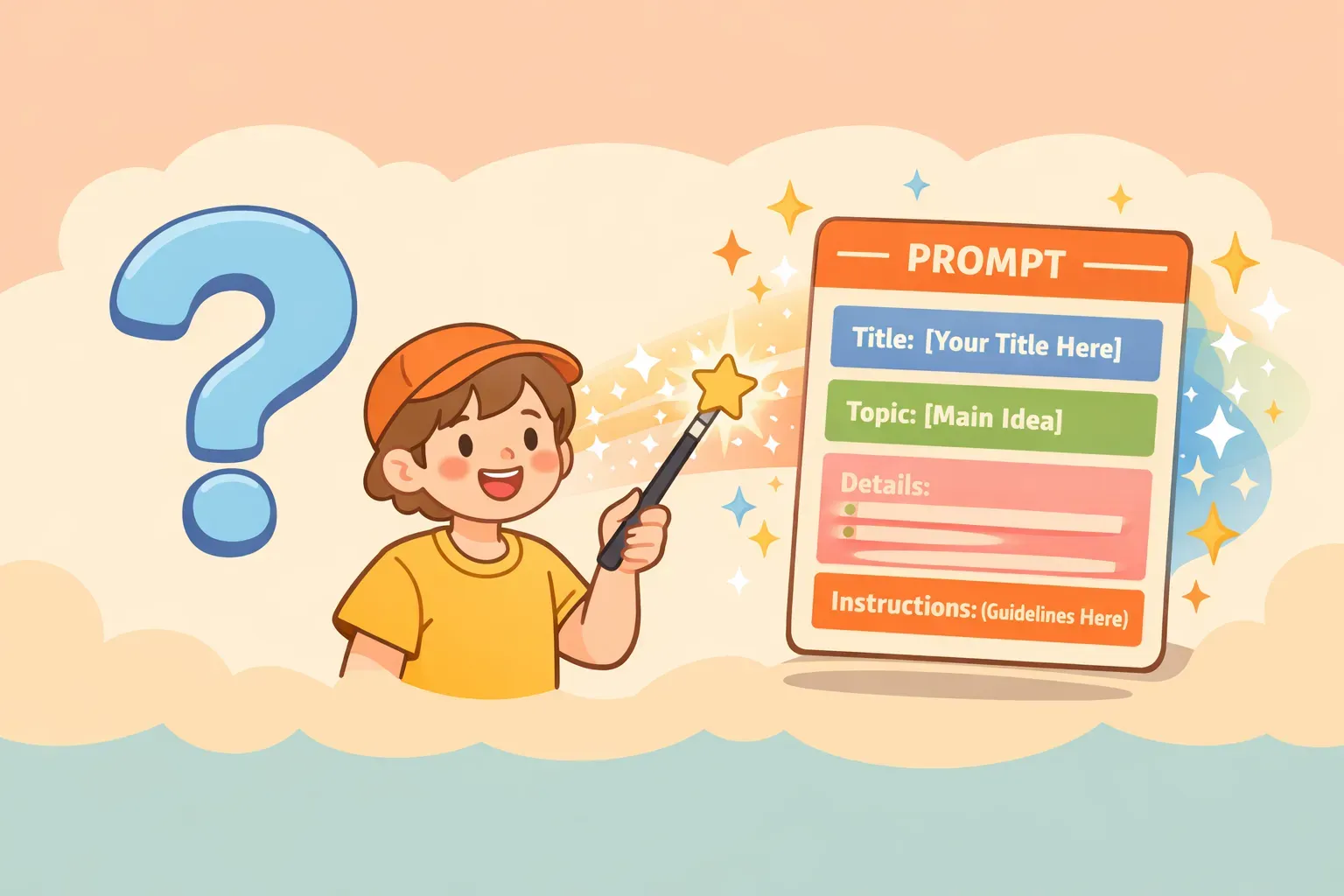
Illustration of transforming a simple question into a detailed, structured prompt
Be Specific Because the AI Already Has General Instructions
The system prompt already told the AI to be helpful and thorough. You don't need to repeat that. What you do need is specificity about your actual task.
Instead of:
Write a good email.
Try:
Write a follow-up email to a client who hasn't responded to my proposal in 5 days. Tone: professional but warm. Length: 3-4 sentences. Goal: get them to schedule a call this week.
The system prompt handles "be helpful." Your job is to define what helpful looks like for this specific task.
Override Defaults with Explicit Instructions
System prompts set default behaviors. User prompts can override them — within limits.
If the AI's default tone feels too formal, say so: "Use a casual, conversational tone." If it's giving you too much detail, specify: "Keep your response under 100 words." If it's adding caveats you don't need: "Skip the disclaimers and give me your best recommendation."
You can't override safety constraints (those are hard rules), but you can override stylistic defaults.
Use Role Prompts as Mini System Prompts
Since you can't change the actual system prompt, you can simulate one by assigning a role in your user prompt. This technique — called role prompting — doesn't make the AI smarter, but it shapes tone, vocabulary, and framing.
For example:
You are a skeptical editor reviewing a draft blog post. Point out weak arguments, unclear sentences, and unsupported claims. Be direct — I want honest feedback, not encouragement.

Here's the draft:
{{draft_text}}
This works because you're giving the AI behavioral instructions in your user prompt — mimicking what a system prompt would do.
Provide Context the System Prompt Doesn't Have
The system prompt knows nothing about you, your project, or your preferences. That's your job.
Include relevant context in your prompts: who the audience is, what you've already tried, what constraints you're working with, what format you need. The more specific context you provide, the less the AI has to guess — and guessing is where things go wrong.
The Real Skill: Mastering User Prompts
Here's the practical reality: most people will never write a system prompt. You'll use ChatGPT, Claude, or Gemini as they come — with system prompts already in place.
That means your leverage is in user prompts. The better you get at writing clear, specific, well-structured prompts, the better results you'll get from any AI tool. Check out our beginner's guide to prompt engineering for the fundamentals, or learn how constraints improve AI output for more advanced techniques.
The catch? Good prompts are worth saving. If you write a prompt that works well — one with the right role, context, and constraints — you'll want to use it again. And then you'll tweak it for a different situation. And then you'll have a dozen variations scattered across notes and chat histories.
This is exactly why tools like PromptNest exist. Save your best prompts, organize them by project, and reuse them with variables like {{client_name}} or {{topic}} that you fill in each time. Instead of rewriting the same effective prompt from memory, you keep it ready and refine it over time.
You can't control the system prompt. But you can master the user prompt — and that's where the real skill lives.