How to Use Context Windows Effectively: Stop Confusing Your AI
Your AI isn't broken — it's overwhelmed. Learn the warning signs of context overload and five practical strategies to keep your conversations on track.
You're twenty messages into a conversation with ChatGPT. You've given it your project brief, three rounds of feedback, and a detailed set of requirements. Then you ask a simple follow-up question — and the response completely ignores everything you discussed. It's like talking to someone who suddenly forgot the last hour of conversation.
You're not imagining it. Your AI isn't broken, and you didn't do anything wrong. You've just run into one of the most misunderstood aspects of working with AI assistants: the context window.
The context window is the AI's working memory — the amount of text it can "see" and reason about at any given moment. And just like a coworker who can only hold so many details in their head at once, AI has limits. Push past those limits, and things start to fall apart in predictable ways.
Here's how to recognize when your AI is overwhelmed and what to do about it.
Why Your AI Gets Confused Mid-Conversation
Think of the context window as a whiteboard. Everything you type — your questions, the AI's responses, any documents you paste in — gets written on that whiteboard. The AI reads the whole thing every time it responds.
The problem? The whiteboard has a fixed size. When it fills up, old content gets erased or compressed to make room for new messages. The AI doesn't tell you this is happening. It just starts behaving strangely.
Different AI tools have different whiteboard sizes:
ChatGPT (GPT-5): 128,000 tokens for Plus users, up to 400,000 via API
Claude: 200,000 tokens standard, up to 1 million for enterprise users
Gemini: Up to 2 million tokens with Gemini 3 Pro
A token is roughly three-quarters of a word. So 128,000 tokens is about 96,000 words — which sounds like plenty until you realize that a long back-and-forth conversation, plus a few pasted documents, can eat through that faster than you'd expect.
But here's the catch that most guides don't mention: the advertised limit isn't the effective limit. According to research from All About AI, performance often degrades well before you hit the maximum. GPT-4 Turbo, for example, starts struggling with accuracy after about 32,000 tokens — even though it can technically handle 128,000.
The "Lost in the Middle" Problem
Even when you're within the context limit, there's another issue: AI models don't pay equal attention to everything in their context window.
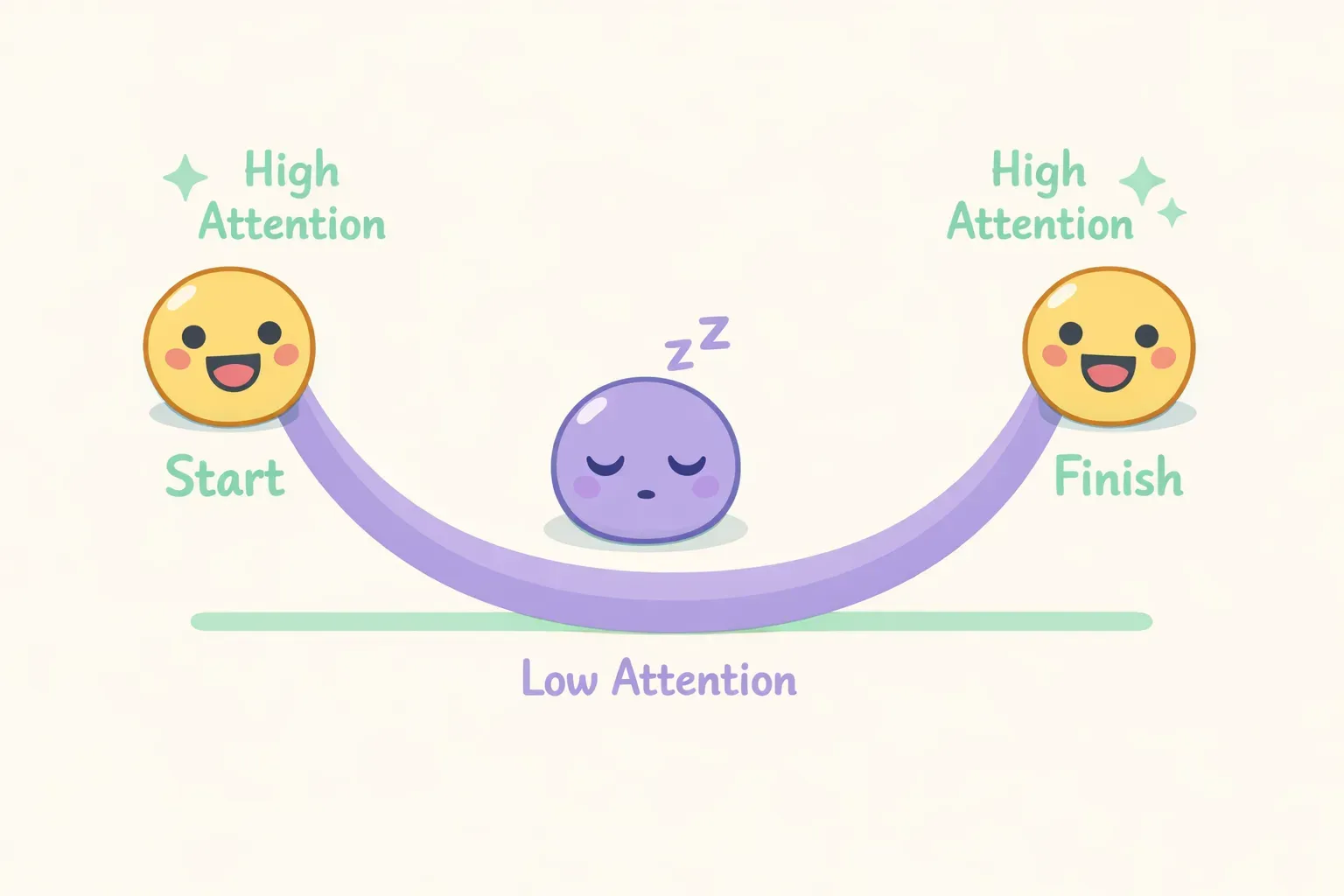
A landmark study by researchers at Stanford found that language models are best at using information at the very beginning and very end of their input. Information in the middle? They struggle with it. The researchers called this the "lost in the middle" effect.
In their tests, GPT-3.5-Turbo's ability to answer questions correctly dropped by more than 20% when the relevant information was buried in the middle of the context rather than placed at the start or end.
U-shaped curve showing AI attention is highest at the beginning and end of context, lowest in the middle
This creates a U-shaped attention curve. The AI pays close attention to your first few messages and your most recent ones, but earlier-middle content gets less weight. It's not that the AI can't see that information — it's that the model's architecture naturally prioritizes certain positions over others.
The practical takeaway: Put your most important information at the beginning of your prompt or repeat it near the end. Don't assume the AI is holding onto that crucial detail you mentioned six messages ago.
Warning Signs Your AI Is Losing the Thread
Before your AI completely derails, it usually shows warning signs. Recognizing these early lets you course-correct before wasting time on a confused conversation.
Repetition and looping: The AI starts repeating the same advice in slightly different words, like a friend who forgot they already told you that story.
Forgotten details: Facts you mentioned earlier — like a project deadline or a specific constraint — get ignored as if they never existed.
Generic or off-topic answers: Instead of building on your specific context, the response feels generic and could apply to anyone.
Contradictions: The AI suggests something that directly conflicts with what it said earlier, without acknowledging the change.
Instruction amnesia: You asked it to follow a specific format or role, it did for a few messages, then quietly reverted to default behavior.
If you notice any of these, your context window is getting crowded. Time to take action.
Five Strategies to Keep Your AI on Track
You can't expand the context window, but you can use it more effectively. Here are five strategies that actually work.
1. Lead with Your Main Point
Don't bury your request under paragraphs of background. State what you want first, then provide supporting context. The AI pays most attention to the beginning — use that real estate for what matters most.
Instead of:
I've been working on this project for three months. We started with a different approach but pivoted after user testing. The stakeholders have specific concerns about the timeline. I need to write an update email...
Try:
I need to write a project update email to stakeholders. Key context: we're two weeks behind schedule due to a mid-project pivot. Tone should be honest but confident.
2. Summarize as You Go
Long conversations accumulate noise — tangents, discarded ideas, exploratory back-and-forth. Periodically, ask the AI to summarize the key decisions so far, or provide a summary yourself.
Try something like:
Before we continue, let me summarize what we've decided:
- Target audience: small business owners
- Tone: professional but approachable
- Key message: the product saves time on invoicing

Now, let's write the first paragraph.
This "resets" the context with what actually matters and helps the AI focus on current priorities rather than old tangents.
3. Start Fresh Strategically
Sometimes the best fix is a new conversation. If you're switching topics, working on a different task, or the current thread has become a mess, start a new chat.
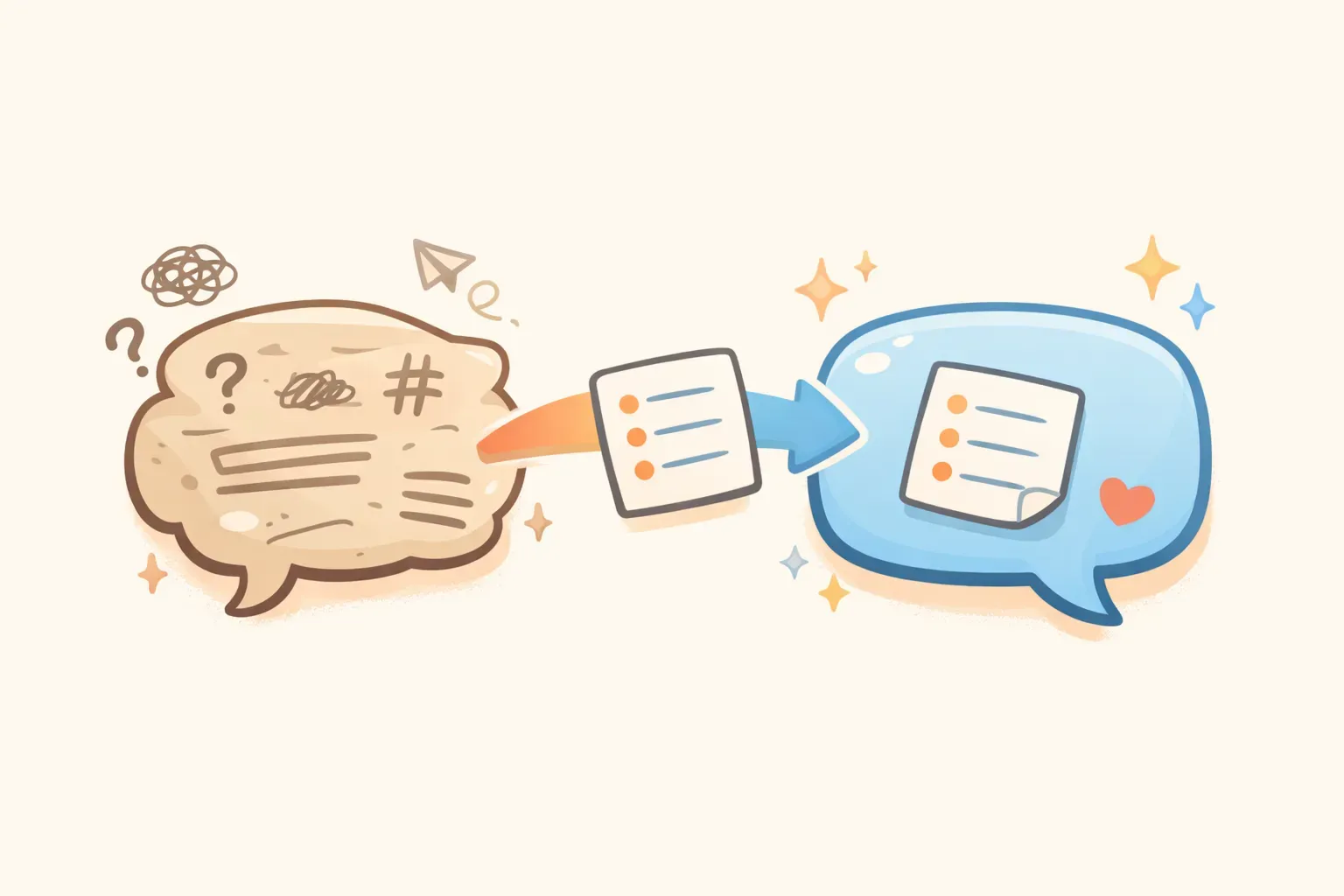
When you do, carry forward only what's essential. Write a brief "briefing document" that captures the key context — like handing a new team member the project summary instead of every email from the past month.
Example briefing:
Project: Redesigning the checkout flow for our e-commerce site
Goal: Reduce cart abandonment by 15%
Constraints: Must work on mobile, can't change the payment provider
Decisions made: Using a single-page checkout, progress bar at top
Current task: Write the confirmation page copy
A briefing document being handed from one chat bubble to a fresh new chat bubble
If you find yourself writing the same briefing documents repeatedly — swapping out project names or task descriptions — consider saving them as templates. Tools like PromptNest let you store these briefings with variables like {{project_name}} and {{current_task}}, so you can fill in the blanks and copy a ready-to-use context reset in seconds.
4. Use Clear Structure
The AI processes everything as a wall of text. Adding structure — headers, bullet points, labeled sections — helps it parse what's background versus what's the actual task.
Use delimiters to separate sections:
## Background
We're a B2B SaaS company selling to marketing teams.

## Current situation
Our trial-to-paid conversion is 8%. Industry average is 12%.

## Task
Suggest three email sequences to improve trial conversions.

## Constraints
- Keep emails under 150 words each
- No discount offers
According to Anthropic's context engineering guide, structured inputs help models distinguish between background information and the actual task, reducing confusion.
5. Give Only Relevant Context
More context isn't always better. Dumping an entire document when you only need one section can actually hurt results. The AI may latch onto irrelevant details or get distracted by tangential information.
Before pasting a long document, ask yourself: what specific parts does the AI actually need to answer this question? Often, a well-chosen excerpt beats the full file.
As the Prompt Engineering Guide puts it: "A concise summary is better than a raw data dump. Keep your context informative, yet tight."
When to Start a New Conversation
Starting fresh feels like losing progress, but sometimes it's the fastest path forward. Here's when to do it:
Start a new chat when:
You're switching to a completely different topic or task
The AI is showing multiple warning signs (contradictions, forgotten instructions, generic responses)
You've been going in circles for several messages without progress
The conversation has accumulated a lot of discarded ideas and tangents
Keep the current chat when:
You're iterating on the same piece of work
The AI is still referencing earlier context accurately
You're building on previous outputs (refining a draft, expanding an outline)
The goal isn't to avoid long conversations — it's to avoid cluttered ones. A focused 30-message thread can work fine. A wandering 15-message thread full of tangents might already be causing problems.
Build a System That Works for You
Working effectively with context windows isn't a one-time fix — it's a habit. The people who get consistently good results from AI assistants aren't necessarily smarter or more technical. They've just learned to work with the limitations instead of fighting them.
Start by watching for the warning signs. When you notice them, try one of the strategies above. Over time, you'll develop an intuition for when to summarize, when to restructure, and when to start fresh.
And when you figure out a context structure that works — a briefing template that gets you great results, or a prompt format that keeps the AI on track — don't let it disappear into your chat history. Save it somewhere you can find it again.
If you want a purpose-built solution, PromptNest is a native Mac app, $19.99 one-time on the Mac App Store — no subscription, no account, runs locally. You can organize your best prompts and briefing templates by project, add variables for the parts that change, and access everything with a keyboard shortcut from any app. No more rewriting the same context setup from memory.
The AI's memory has limits. Yours doesn't have to.